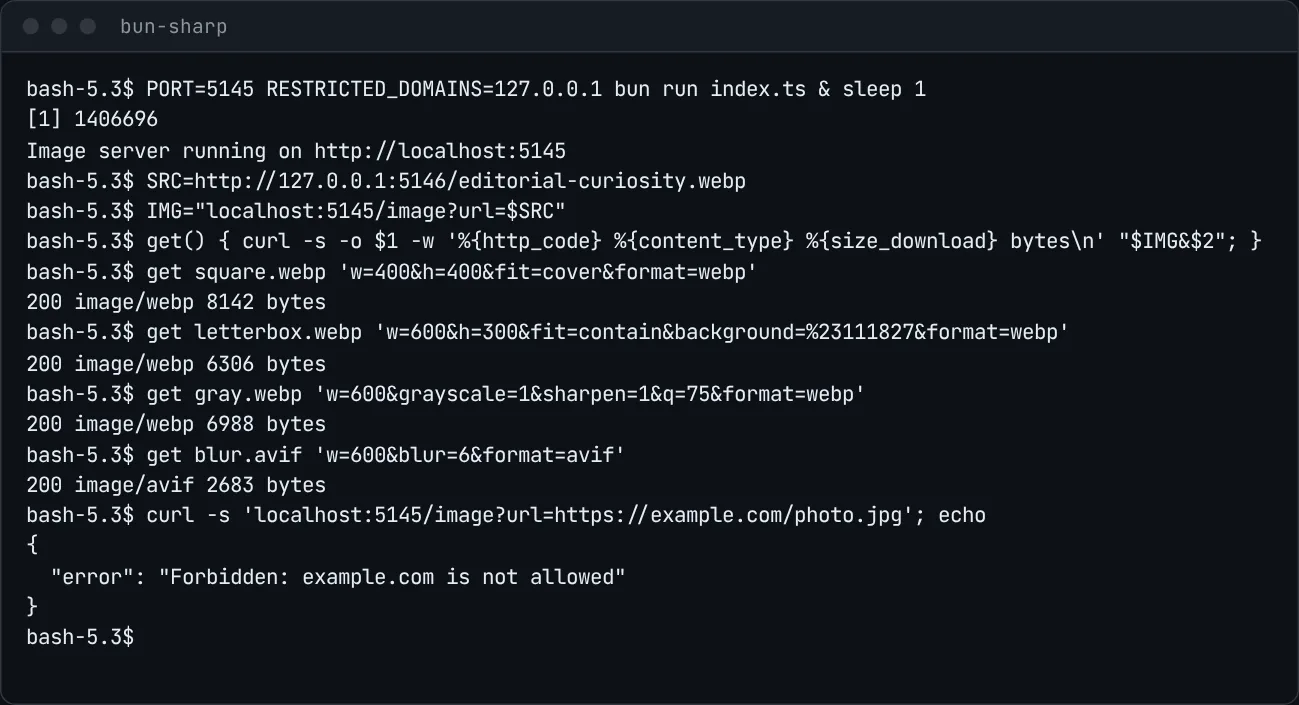
bun-sharp is a single-file image service. Give its /image endpoint the URL of an image and a few query parameters, and it fetches the image, transforms it with sharp, and sends back the result with cache and CORS headers. It’s TypeScript on Bun’s built-in Bun.serve, and the root path answers with a JSON description of every parameter and an example request.
It was set up with bun init on August 12, 2025 (UTC), in two commits: the server, and eight minutes later an allow-list for source domains. It hasn’t changed since.
Parameters
| Parameter | What it does |
|---|---|
url |
The source image, required, http or https only |
w, h, dpr |
Target width and height in pixels (1 to 10,000), and a multiplier for both (0.1 to 5) |
fit, position, background |
How the image fits the box (cover by default, or contain, fill, inside, outside), the crop gravity, and the padding color |
format, q |
JPEG, PNG, WebP, AVIF, TIFF or HEIF output, with a quality from 1 to 100 |
grayscale, rotate, blur, sharpen |
Grayscale, a rotation in degrees, a blur sigma from 0.3 to 100, and sharpening that’s either on or a sigma from 0.1 to 10 |
cacheSeconds |
The Cache-Control max-age, an hour by default |
Out-of-range numbers are clamped and values that don’t parse are ignored. With q but no format, it keeps the source’s format when that’s JPEG, PNG, WebP or AVIF, and otherwise switches to WebP.


w=400&h=400&fit=cover&format=webp: a square crop, 8,142 bytes.
fit=contain with a #111827 background, letterboxed to 600 by 300: 6,306 bytes.
grayscale=1&sharpen=1&q=75 at 600 pixels wide: 6,988 bytes.How it works
The handler fetches the source with a 15-second timeout, following redirects and asking for AVIF or WebP first. It then runs one sharp pipeline: rotation, grayscale, the resize, sharpening, blur, and the encoder, which defaults to quality 80 for JPEG (with mozjpeg), PNG, WebP and TIFF, and 60 for AVIF and HEIF. Responses carry Cache-Control: public, max-age=…, immutable, Vary: Origin, Accept, DPR and Access-Control-Allow-Origin: *. Errors come back as JSON with a 400, 403, 404 or 500 status.
RESTRICTED_DOMAINS takes a comma-separated list of hostnames. When it’s set, a source on any other host gets a 403 before anything is fetched. When it isn’t, the server fetches any http or https URL it’s given. The committed example.env sets it to google.com. sharp is also created with unlimited: true, which turns off its limit on input pixels.
smush.lol, from August 2026, is a later and much larger Bun image project. It uses Bun.Image rather than sharp.
Running it
bun install
bun run index.ts
It listens on port 3000 unless PORT is set. Then request something like localhost:3000/image?url=<an image URL>&w=800&format=webp.
The creation date shown here is the GitHub repository’s UTC creation date. The terminal capture comes from running the server locally with Bun 1.4.2, the three transformed images are its actual responses for an image from this site served by a local static server, and the code card shows a real file from the repository.